Просмотр новости
Найдите то, что Вас интересует
 Спутники
 РН
РН SpaceX
 Роскосмос
 NASA
NASA
СпутникиРНSpaceXРоскосмосNASAWindows users should run ipconfig /flushdns, while most modern Linux systems using systemd should run sudo resolvectl flush-caches. Both commands clear stored DNS answers so the machine asks DNS servers again instead of reusing stale ... Read more
The post DNS Flush Command: Windows ipconfig vs Linux resolvectl for Clearing DNS Cache appeared first on NavThemes.
Windows users should run ipconfig /flushdns, while most modern Linux systems using systemd should run sudo resolvectl flush-caches. Both commands clear stored DNS answers so the machine asks DNS servers again instead of reusing stale records. Microsoft documents ipconfig /flushdns as the command that flushes the DNS resolver cache and returns a success message when it works [source: Microsoft].
TLDR: On Windows, the usual DNS flush command is ipconfig /flushdns. On Linux systems that use systemd-resolved, the closest match is sudo resolvectl flush-caches. For example, if a website moved to a new IP address and 30% of office laptops still reached the old server, flushing DNS on those machines could force a fresh lookup. The annoying part is that Linux may use a different cache service, so resolvectl is not always the whole story.
A DNS cache stores recent domain lookups. If a person visits example.com, the computer may keep the answer for a while. That saves time. It also reduces repeated DNS traffic.
Problems start when a DNS record changes but the local machine still has the old answer. A browser may keep loading the wrong site. A VPN may fail to reach an internal service. A developer may update a test domain and still see the old environment. It drives people slightly mad because the site looks broken, yet the real issue sits in a quiet local cache.
Flushing the DNS cache clears those saved answers. The next lookup must ask again. This does not change public DNS records. It only clears local stored results on that machine.

ipconfig /flushdnsOn Windows, the standard command is simple:
ipconfig /flushdnsIt can be run from Command Prompt, PowerShell, or Windows Terminal. In many cases, normal user rights are enough. If the command fails or policy blocks it, running the terminal as administrator may help.
A successful result usually looks like this:
Windows IP Configuration

Successfully flushed the DNS Resolver Cache.
This command clears the Windows DNS Client resolver cache. It does not clear every possible cache in every browser or app. Chrome, Edge, Firefox, VPN clients, and security tools may keep their own DNS or connection state. That is why a restart of the browser sometimes helps after the system flush.
Best times to use it on WindowsHonestly, it feels like Windows makes this part easier than it deserves to be. The command is short, the message is clear, and the behavior is fairly consistent.
Linux: usingresolvectl flush-cachesOn many current Linux distributions, DNS resolution is handled by systemd-resolved. For those systems, the flush command is:
sudo resolvectl flush-cachesSome systems may allow it without sudo, depending on policy. Using sudo avoids permission friction.
To inspect cache statistics before or after flushing, an administrator may run:
resolvectl statisticsThe command belongs to systemd-resolved, not to Linux as a whole. That distinction matters. Linux distributions are not all wired the same way. Ubuntu, Debian, Fedora, Arch, and server builds may use different DNS layers, especially after manual changes.
The official systemd manual lists flush-caches as the command that flushes all resource record caches maintained by the service [source: freedesktop.org].

resolvectl may not be enoughLinux DNS troubleshooting can get messy. The machine may not be using systemd-resolved at all. It may rely on another service, such as:
If resolvectl flush-caches changes nothing, the administrator should check which resolver is active:
resolvectl statusIf that command is missing, the system may not use systemd-resolved. In that case, flushing must target the actual service. For example:
sudo systemctl restart nscd
sudo systemctl restart dnsmasq
sudo systemctl restart unbound
Restarting a resolver service is heavier than flushing a cache. Still, it is often the practical fix when the exact cache command is unclear.
The commands solve the same class of problem, but they sit in different ecosystems.
| Area | Windows | Linux with systemd-resolved |
|---|---|---|
| Main command | ipconfig /flushdns |
sudo resolvectl flush-caches |
| Tool type | Built-in network configuration command | Systemd resolver control command |
| Result message | Usually clear and direct | Often silent if successful |
| Main risk | Browser or app cache may remain | System may use another DNS cache service |
The biggest difference is predictability. Windows has one common local resolver cache command. Linux has several possible resolver paths. That is powerful, but it also means a simple DNS issue can take ten extra minutes for no good reason.
Quick troubleshooting checklistresolvectl has no effect.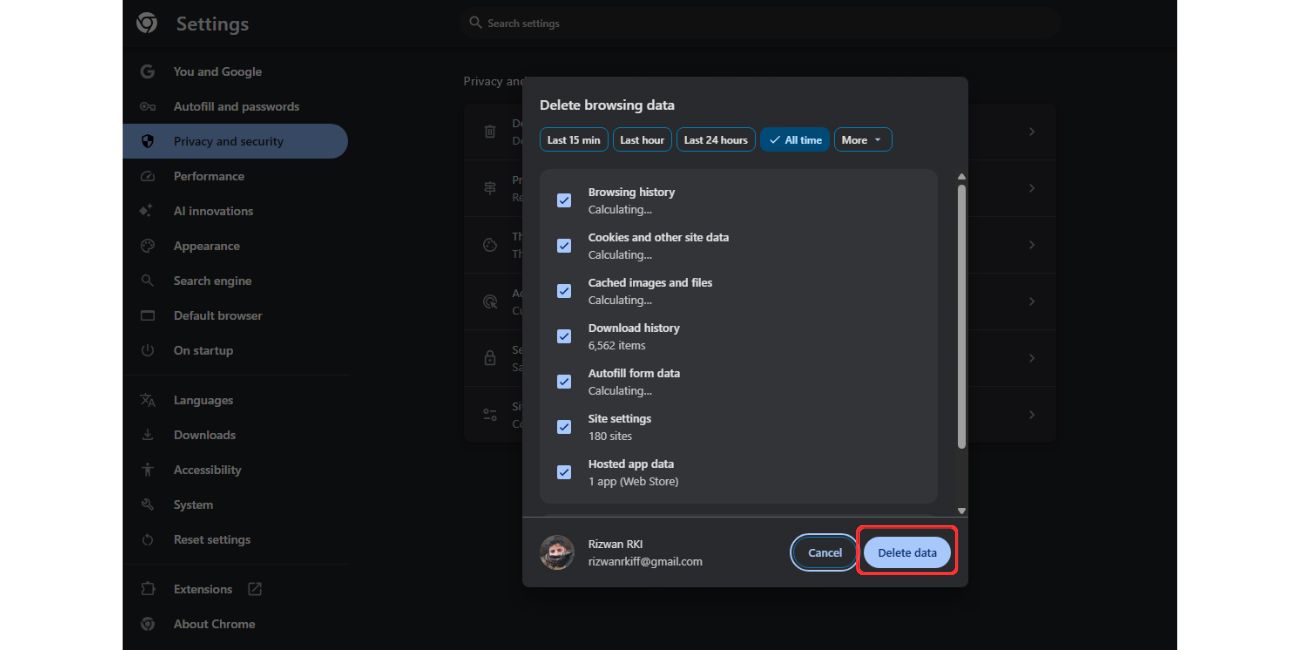
resolvectl on the wrong Linux setup: The command only helps when systemd-resolved is involved.Usually, no. It can fix stale or bad DNS answers, but it may make the next lookup slightly slower because the cache must be rebuilt.
Isipconfig /flushdns safe?Yes. It only clears cached DNS records on the local Windows machine. It does not delete files or change DNS server settings.
Issudo resolvectl flush-caches safe on Linux?Yes, when the system uses systemd-resolved. It clears cached DNS records held by that service.
Why does a site still open the old server after flushing DNS?The browser, CDN, proxy, VPN, or upstream DNS resolver may still have cached data. The DNS record may also not have changed where expected.
What is the Linux equivalent ofipconfig /flushdns?For systems using systemd-resolved, it is sudo resolvectl flush-caches. For other systems, the right command depends on the active DNS cache service.
No. It is best used as a troubleshooting step after DNS changes, VPN issues, or suspicious resolution behavior.
| # | Наименование новости | Тональность | Информативность | Дата публикации |
|---|---|---|---|---|
| 1 | Can’t Reach DNS Server: Chrome vs Firefox for Troubleshooting DNS Connectivity | 0 | 6.18 | 11-10-2026 |
| 2 | Tracert Request Timed Out: tracert vs pathping for Windows Network Troubleshooting | 0 | 5.09 | 12-10-2026 |
| 3 | Traceroute Request Timed Out: traceroute vs ping for Diagnosing Network Connectivity | 0 | 5.41 | 13-10-2026 |
| 4 | Curl Error 60: curl Certificate Validation vs CA Bundle Configuration for Fixing SSL Trust Errors | 0 | 6.66 | 12-10-2026 |
| 5 | How-To Geek: смена DNS-сервера на роутере может ускорить интернет | 0 | 18.48 | 25-08-2026 |
| 6 | [Rescheduled] Namecheap network maintenance on Production environment – September 1, 2026 | 0 | 14.26 | 18-08-2026 |
| 7 | Cloudflare dash is unavailable | 0 | 5 | 12-07-2026 |
| 8 | Re: Vax vms 5.2 decnet problem | 0 | 6.76 | 13-10-2026 |
| 9 | Trustee Management of .RU / .РФ / .SU Domains for Non-Residents | 0 | 8.92 | 10-06-2026 |
| 10 | Сайт не открывается: пошаговая диагностика от роутера до провайдера | 0 | 17.36 | 21-09-2026 |